Working with Files
Important
This feature is only available in EDG Studio.
When logged in as Administrator, Files appears in the Collections menu as an asset collection type. It enables users to open and modify files, linked to the workspace, using a user interface. Before any editing, TQ Data Foundation makes a copy of the file content in its database and the user edits that copy. This supports a process similar to how Workflows support editing a “Working Copy” that is separate from the “Production Copy” of a collecion.
The following figure shows the basic editing process for Files.
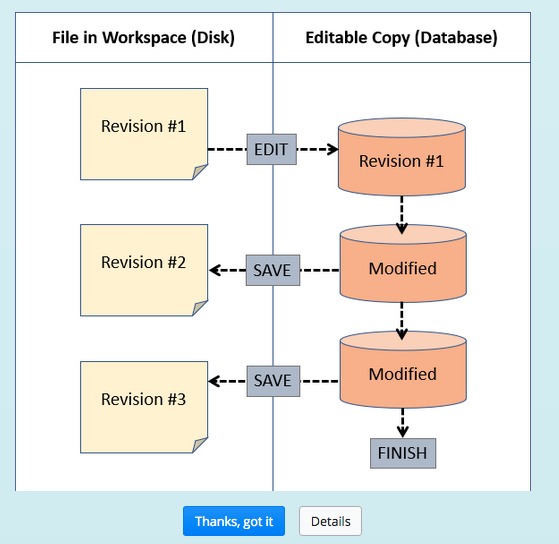
Files Collection Type Editing Process
Workspace Structure
The Files Explorer shows the projects, folders and files from the workspace. Projects are the top level folders directly under the Workspace. New projects can be created in the workspace. By selecting the Workspace and using the Link to Folder button, users can also designate folders located outside the workspace as being projects. Within a project, users can create new folders and files.
The following figure shows the New Project button appearing when the top-level Workspace is selected as the target location.
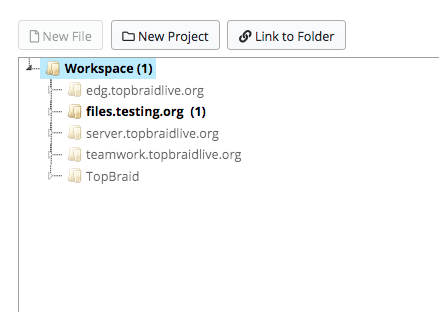
Files New Project Button
How to Edit RDF Files
The files and folder in normal font (i.e. not light grey) are editable by selecting the file and clicking on the Edit button or picking Edit from the right click menu.
The way a file is displayed in the explorer indicates its status.
If TQ Data Foundation has a copy of a file in the database for editing, the file is shown as black in color and is bold.
When there are unsaved changes in the database, the file is shown as blue in color and is bold with an asterisk.
If the file on disk is newer than the database content, the file is shown as red in color .
After finishing, the file returns to being shown in normal font.
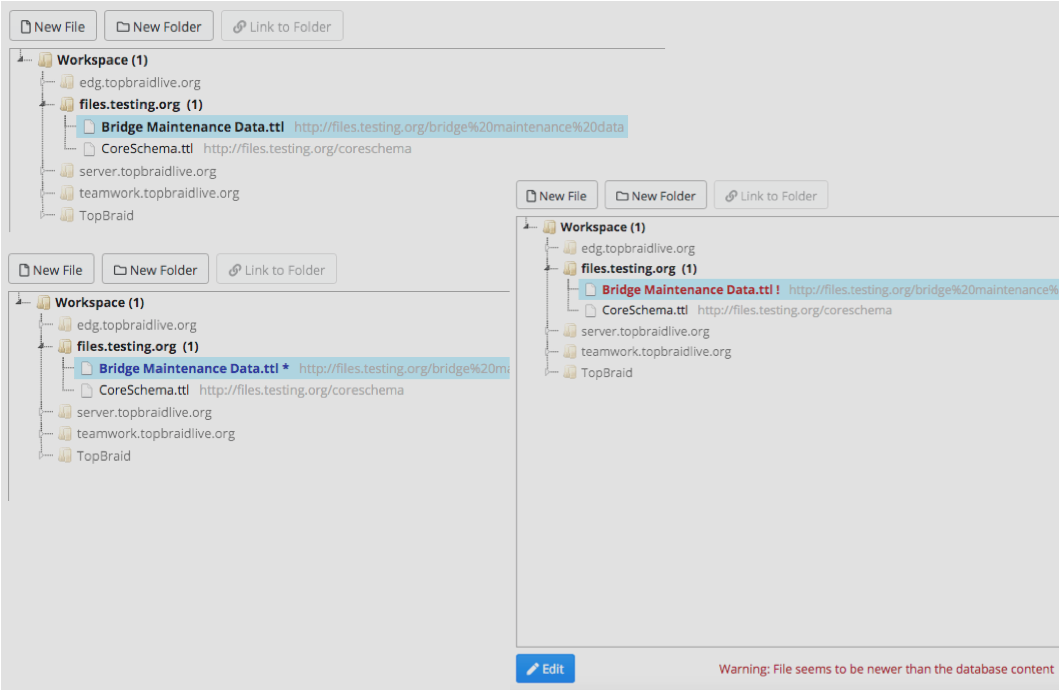
Files File Status Colors
When a file is edited for the first time, TQ Data Foundation creates a File Asset Collection backed by the database and copies the content of the file into the database. The following figure shows the user interface when creating a new instance of a class.
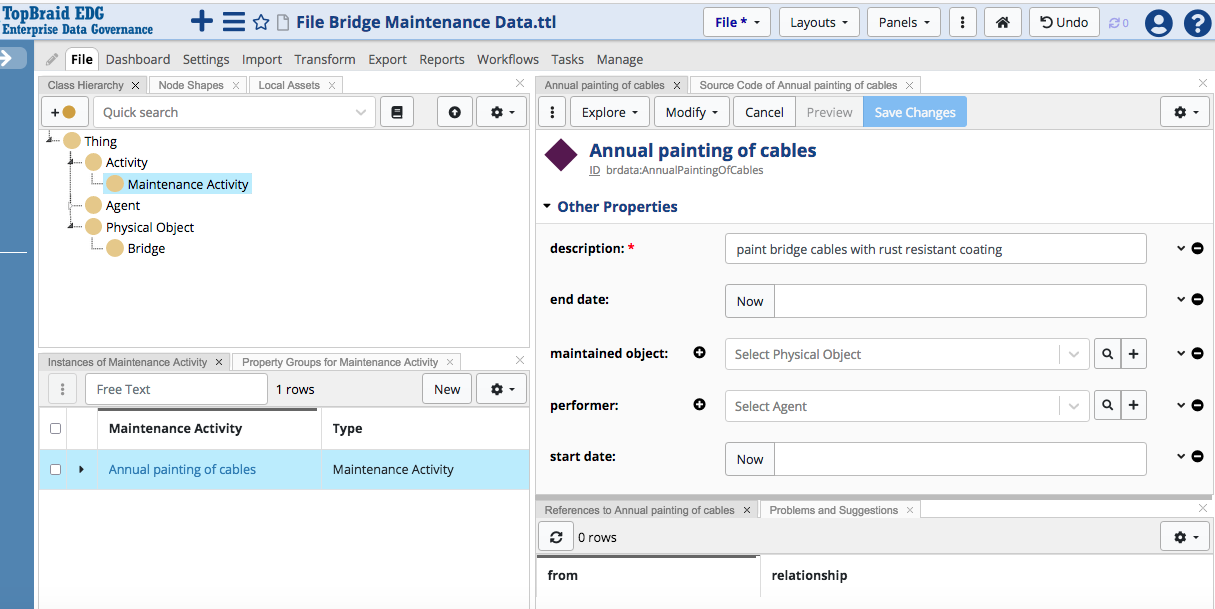
Files Edtior Create New Instance
The database version of the file can be viewed, queried and changed and either saved back into its original file on disk or discarded without save.
The Change History Panel shows changes made in the current editing session. Compare with File on Disk is a diff-like utility that displays a comparison of the opened, edited version of the file and the file as stored on disk.
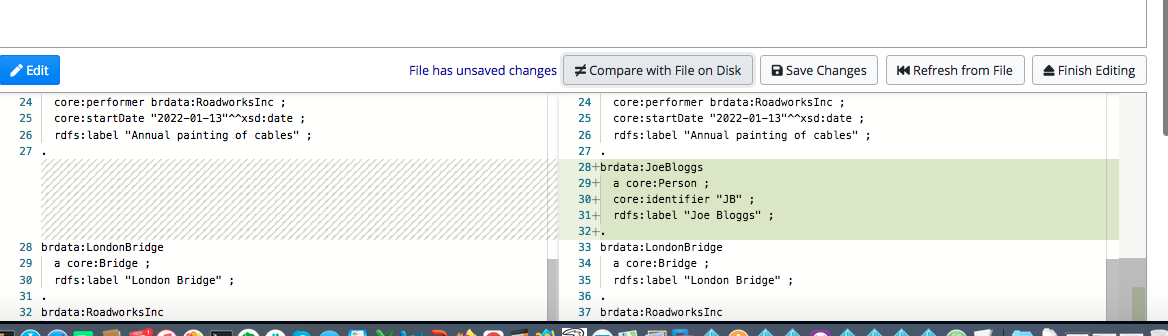
Files Comparison Result
Once a file editing session is finished, the content stored in the database is deleted and the change history is cleared. Finishing the editing of a file without saving means changes are lost. Refreshing the database from file will re-copy the content of the file from disk into the database. All unsaved changes will be lost. Only the saved changes will be visible to other graphs that include (owl:import) the file’s graph. The following figure shows the File button options when editing a file.
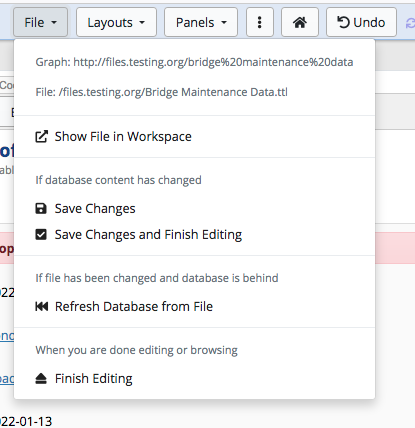
Files File Button Options
Attention
It is possible for multiple users to edit the same asset collection copy of a file. If multiple editing sesssions are in process, then one user cannot End editing because TQ Data Foundation knows that there is another active session. Both sessions must be completed by the users or become expired in order to End editing.
Converting OWL Ontologies
The files tree has a right-click action to convert individual files or all files from a folder from OWL to SHACL. This is recommended when you are working with OWL ontologies that were edited with tools such as Protege. The conversion can keep the OWL axioms so that you can use both SHACL and OWL at once.
Technical Details
The editor for Files has the following differences compared to other asset collection types:
There are no limits on the type of resources that can be edited, i.e. classes, shapes, and instances
There is a File drop down menu in the top, with features to move data between file and database
The Source Code panel has an option to view and edit the Whole Graph
The Home button takes you to the owl:Ontology of the file, not the URN resource of the asset collection
Files cannot owl:import asset collections - only their file representations
New Explore action Find Usages in Other Files
New Modify action Replace URI across Graphs
New Batch action Replace Namespace (across Graphs)
Many other features are available when using Files. The following figures shows Problems and Suggestions usage.
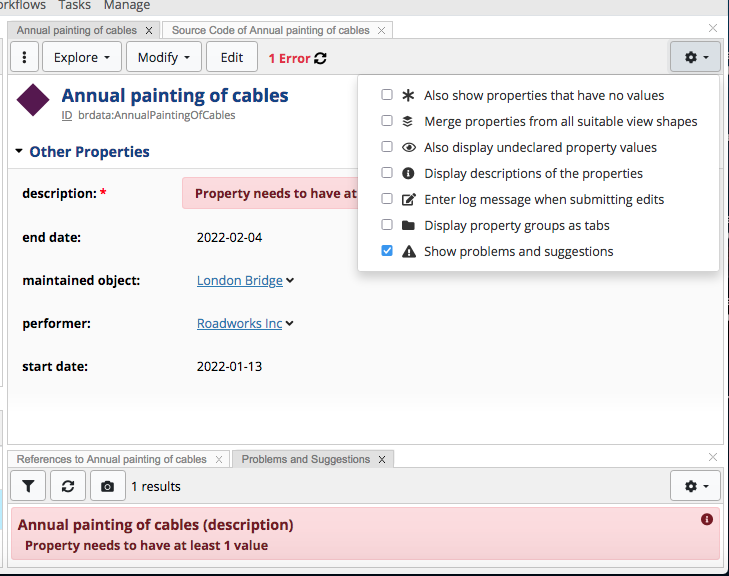
Files Problems and Suggestions
Also, most settings from the Settings and Manage tabs as well as Comments and Tasks would be lost when editing is finished, so some of those features are intentionally hidden. Tasks remain available in case you want to locally track your progress.
When a file-based graph is copied into the database, the owl:imports of the file will be copied into the URN resource of the asset collection. Use the Edit Includes link from the Settings tab to edit them.
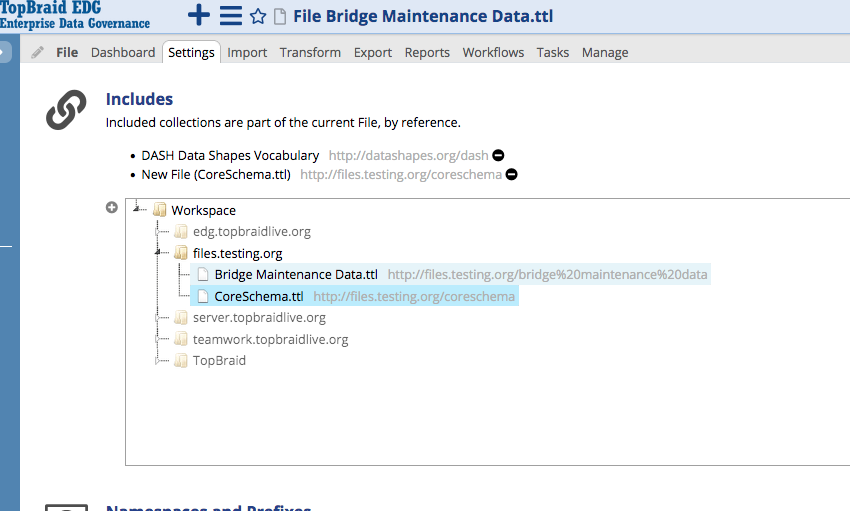
Files Includes
There will also be an additional owl:import to a graph called ‘filesimport’ that owl:imports some further sub-graphs that are needed to drive the user interface. This temporary owl:import will be removed when the database is saved back into the original file. All other triples associated with the temporary URN resource will also be deleted on save. While you will see those extra triples in the Source Code panel - please leave them unchanged.
The database graph that is used to edit files is a distinct graph from the file itself. For example it would have a graph URI such as urn:x-evn-master:myfile_ttl, while the original file would have the URI http://example.org/myfile. Other graphs that owl:import the file will not use the URN-based database graph, but only the file-based graph.