Home Page and Navigation
Many views are oriented toward a particular type of asset collection, such as taxonomy, ontology, data asset collection, etc. Every view has a header that provides create new collections, a collections navigation menu, breadcrumb navigation, search, and special application links.
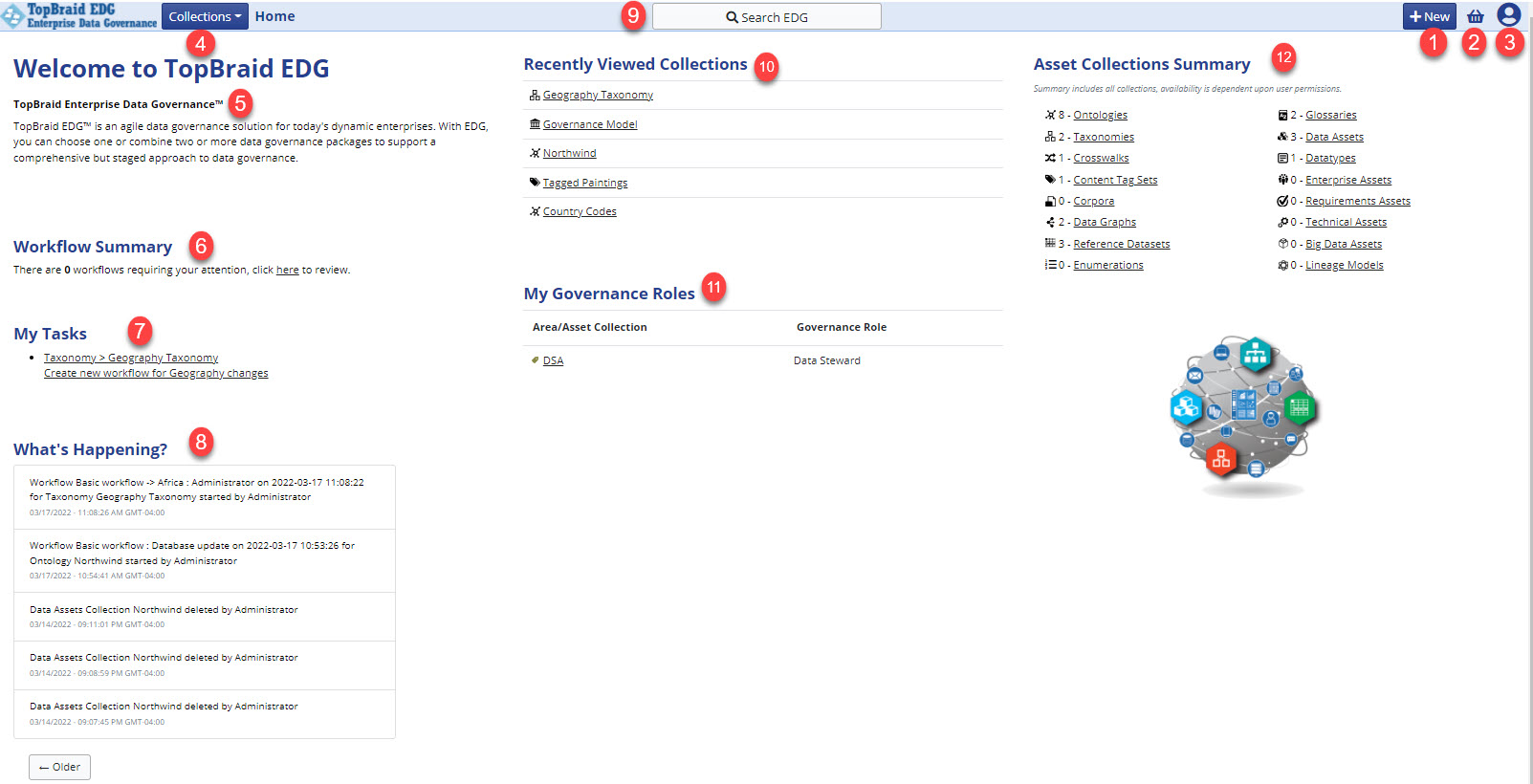
The main home view, shown below, provides access to top-level searches and other personalized widgets. See below for customizing the landing page.
Home Page
Create New: Initiates creating a new collection. (see more below)
Basket: Each user can maintain a personal list of “bookmarked” asset collections or individual assets in their Basket.
User menu: Contains links and system information.
Collections menu: Provides quick access to Asset Collections and the collection home page. (see more below)
System Announcements: Announcements can be set by Administrators. (see more below)
Workflow summary: Shortcut to the logged on users open workflows.
My Tasks: This widget is a personal view of open tasks assigned to the user.
What’s Happening: Lists important actions of users in the system.
Search: Combination search feature. Search for application wide faceted searching across selected resources or Global Lookup which searches across all resources by label prefix.
Recently Viewed Collections: This widget is a personal view of the last 5 collections viewed by the user.
My Governance Roles: This widget shows which Subject Areas a user is a member of and their Governance Role within that Subject Area.
Asset Collection Summary: Counts of each Collection in the system. Users actual count may differ depending on permission to collections.
Collections Menu
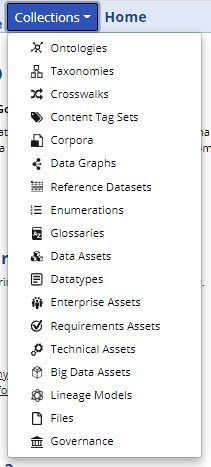
The collections menu in TQ Data Foundation provides quick access to Asset Collections and the collection home page(s) for a particular type of collection. This menu is available on all pages in the header bar. To access the collections home page, click on the menu item for that collections. For example click the word “Ontologies” to be taken to the Ontologies page. Note, this menu will look different depending on what packages you have purchased.
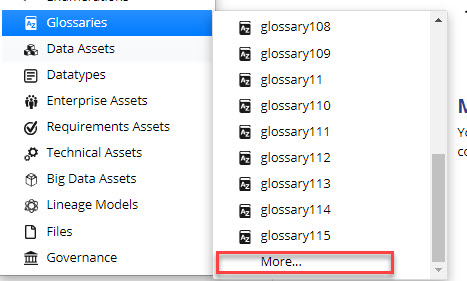
There is an overflow once a collection type has over 20 results. Simply click “More…” to be taken to the collection home page to use the search table instead.
Collection Type Pages
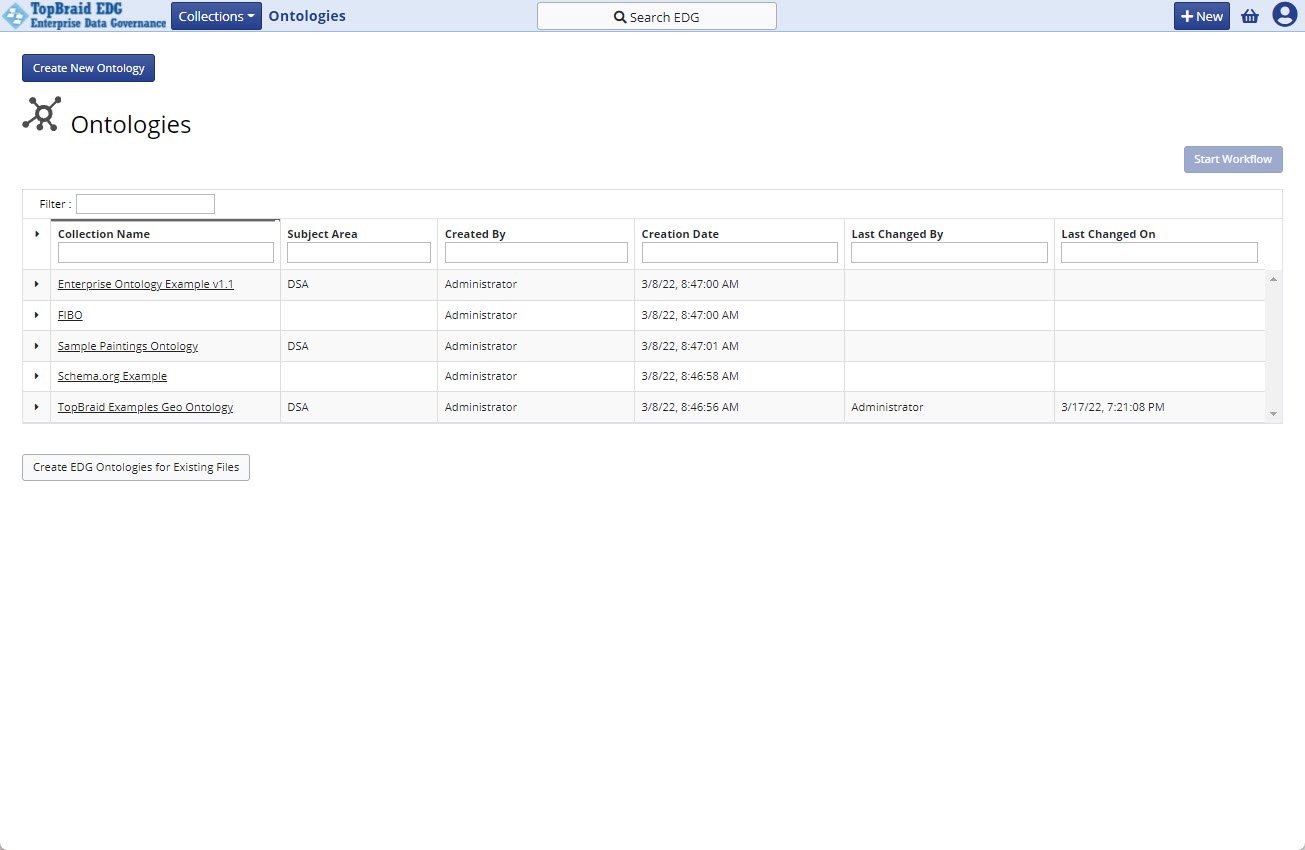
Clicking on a type of collection in the collections menu will bring you to the page listing all the asset collections of that type. The table here can be sorted and filtered.
Collection Type Page
This page can also be accessed from the Asset Collection Editor pages by clicking on the icon located directly to the left of the name of a collection in the header.
User Directory
The list of all users defined in the system can be shown by clicking on the User Directory link in the user menu in the top right of the header of every page. Each user listed can be clicked on to see their details. Only users that have previously logged in to TQ Data Foundation are listed on this page, unless LDAP is configured in Server Administration. For each user, the details are as listed in the following figure.
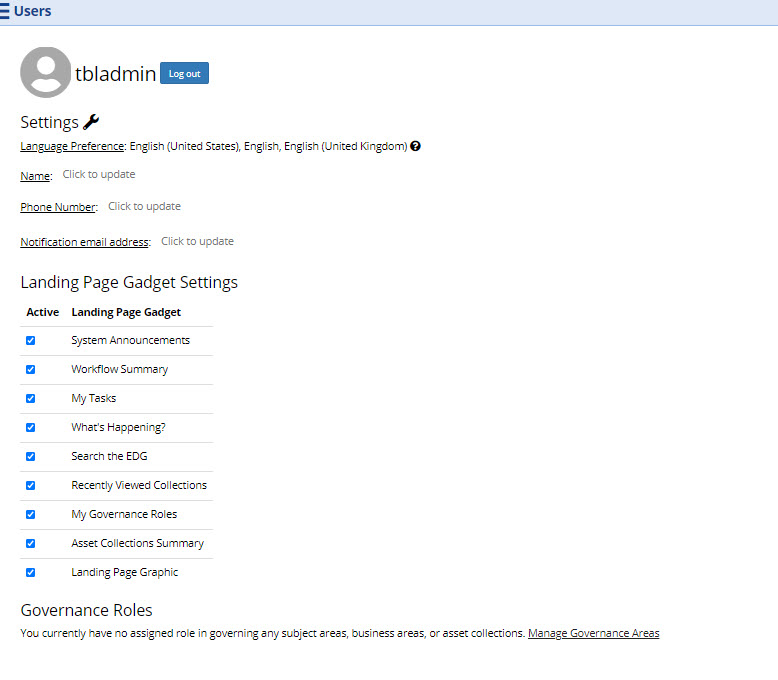
User Settings Page
Settings: Non-LDAP users can define the email address that receives notifications, their name and phone number. Users with Administrator privileges can edit this information for all users. Language Preference is displayed based on the browser settings of the current user.
Governance Roles: Lists the governance roles of the selected user, if any. The list displays the name of the area or asset collection (including a link to the details page) and the governance role of the user.
Landing Page Gadget Settings: Users can personalize their view of the Home (landing) page. Administrators cannot edit this for individual users, only globally through Server Administration.
Avatar: Clicking on the person icon in the top right will allow users (or administrators) to set a photo for the user to be used on the home page, user page, and comments.
This will be used on the home page, user page, and comments.
Announcements
The default installation of TQ Data Foundation will have a prebuilt welcome banner and announcement on the home page. These can be modified and controlled through the Governance model.
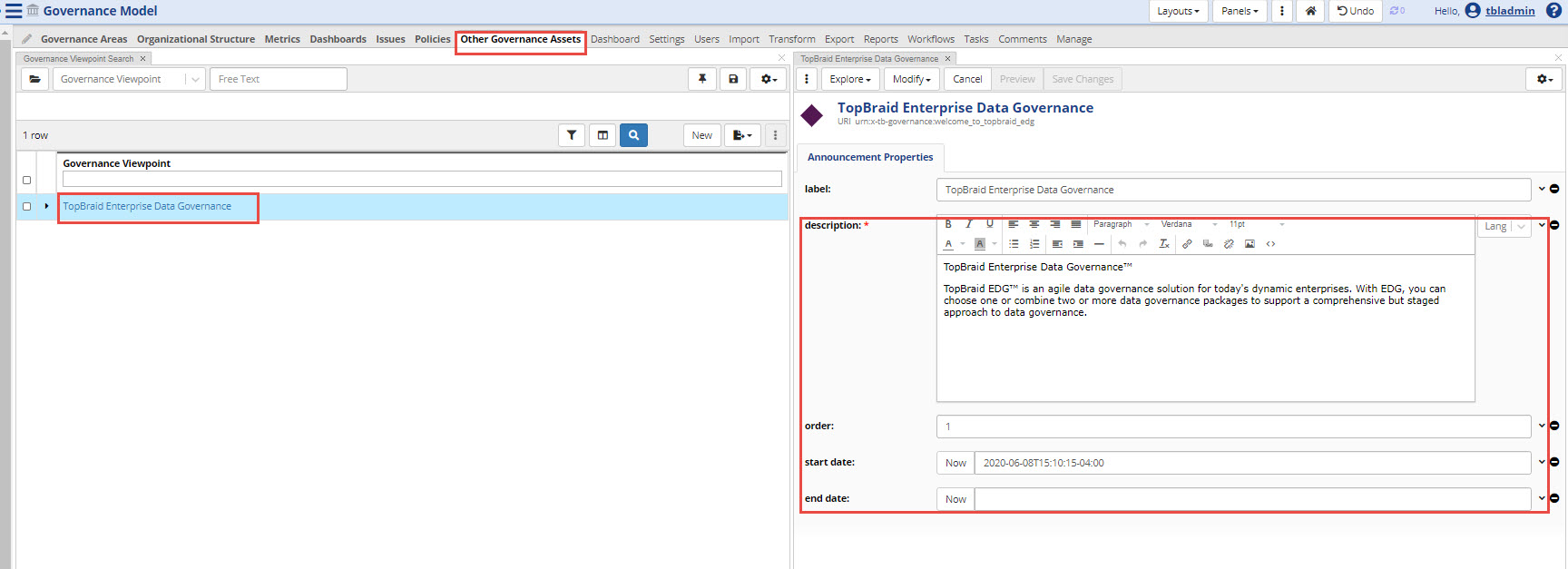
Announcements Modification Page
Navigate to Governance model, then “other governance assets” tab at the top.
Select the “TopBraid Enterprise Data Governance” resource to bring up the form for the current default announcement.
Here you can add new announcements along the order of display and start and stop dates. Select New button from the Governance Viewpoint Search panel. Then edit the description and other properties.
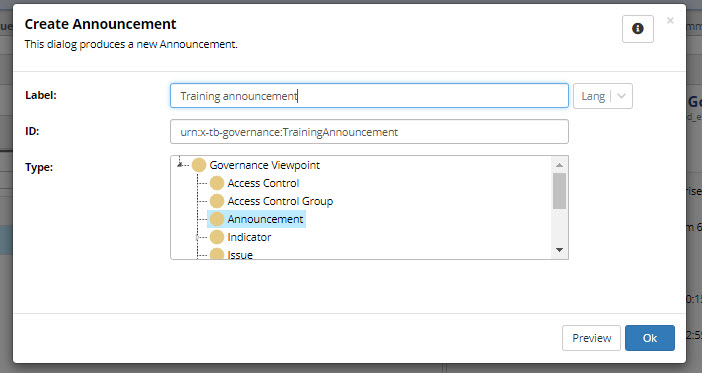
Create Announcement Form
Change the welcome banner by selecting this resource and the editing the text in the form:
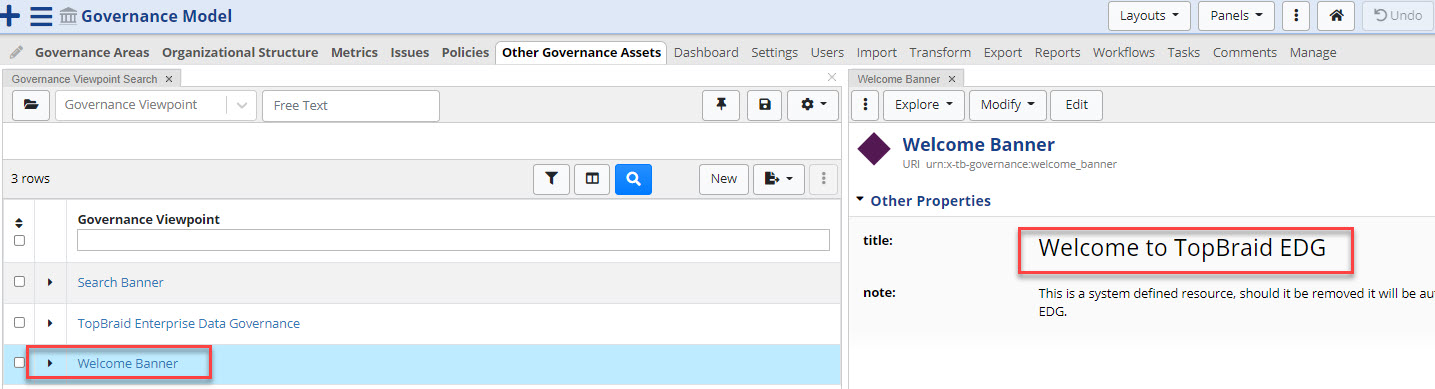
Change Welcome Banner
Customizing the Home Page
The landing page for TQ Data Foundation can be customized per instance by an administrator or per user.
Administrators can turn off or on widgets through Server Admininstration -> Product Configuration page. These settings apply to all users.
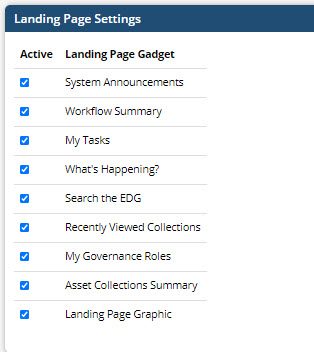
Landing Page Settings
Users can apply the same settings through their user page.
Note
Anything turned off by an administrator cannot be turned on by a user.
User Settings Page
See also
To customize the logo and other personalization see the Extension Development.