Searching in TQ Data Foundation is supported across collections as well as within collections and their included collections.
Global Search is the feature that supports server-wide search.
The Search Panel that is available when viewing or editing a specific collection supports search within that collection and its included collections.
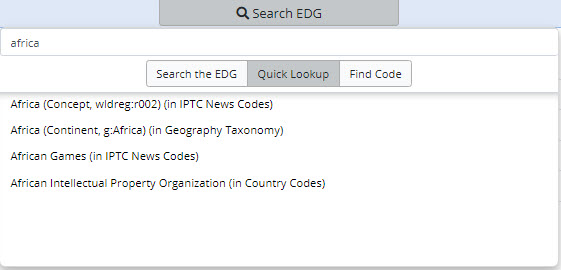
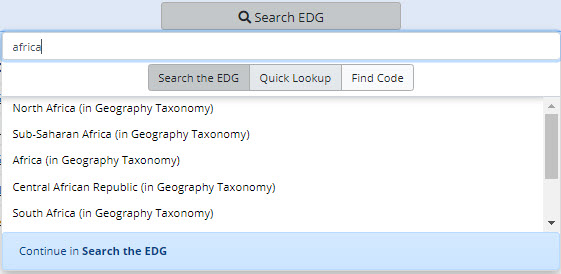
The main header bar in TQ Data Foundation provides a search feature that has access to both Global Search, Quick Lookup, and Find Code for Reference Data.
By default, when collections are enabled for Global Search, this is the default result. If no collections are enabled for Global Search then Quick Lookup is the default. See below for details on each option.
The images below show different results due to the fact that Global Search only has one enabled collection applicable for the result, where the quick lookup searches across all collections.
Quick Lookup lets you find assets (resources) across all asset collections in TQ Data Foundation by entering their name. This is an auto-complete look up field.
As you type, any resource whose label is prefixed by the search text will appear in a popup list.
Label and Preferred label with a language tag in the current browser’s language or with no language tag will be matched against the entered string.
Selecting a listed resource will navigate you to that resource in a new tab.
Global Search searches across all resources that administrator and/or manager of a specific collection elected to include in the index.
This decision can be made upon creation of a collection and can also be made later on the Manage tab of the collection or through Governance Model.
An entire subject area or business area can be included in Global Search by checking the box as shown below. To see which collections are enabled for Global Search, navigate
directly to the search results page (URL/search) and see the asset collection facets.
Note
Global Search adheres to the following rules for indexing data:
Blank Nodes are not indexed, a blank node identifier is materialized at runtime the indexer would not have the ability to identify the statements to account for changes in relationship or content.
Object Types are indexed as facets. Facets are not hierarchical.
Literals such as Strings, Dates and Numbers are all indexed as searchable text.
The indexer will attempt to respect dash:hidden. At index time Global Search will check if there is an associated Property Shape for a given property that contains the dash:hidden attribute. If discovered the value of this field is not indexed.
Selecting a search result from the header bar will open that result in the editor page in a new tab. If you would like to view more results or navigate to the Global Search page
for further details or to use faceted search, click “Continue in Global Search”.
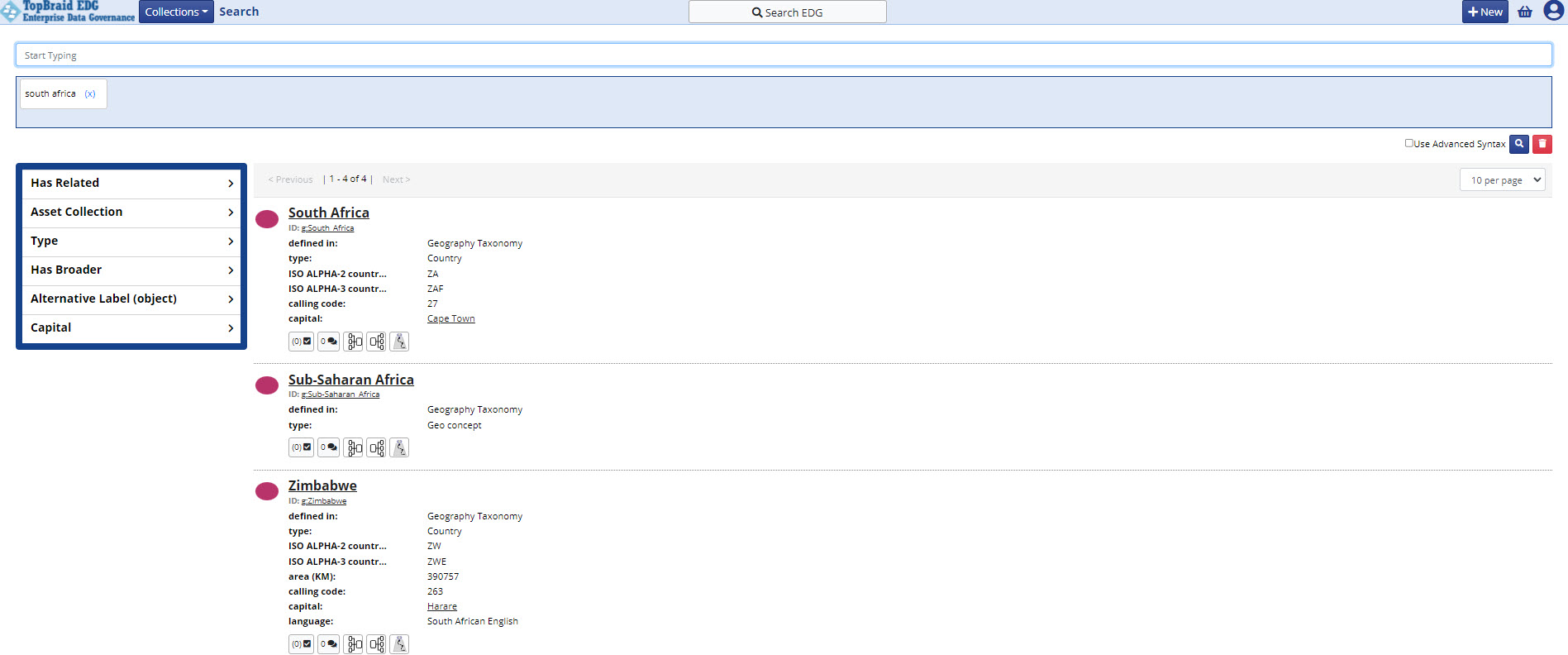
Submitting a search from the home page opens a page with the search results summary.
Your search key words will be matched against text in any of the properties of the collections that are managed by Global Search.
Note
You may have fields that contain text tagged with different languages, note that search will be performed across all values, irrespective of the language.
In the search results page, you can:
refine or completely change the search terms and re-execute the search,
filter results via facets,
click on any of the result results to see more information about it,
make comments about any of the found resources and see comments made by other users,
endorse any of the found resources and see endorsements made my others,
access interactive visual views and diagrams for a found resource – what is available depends on a type of the item,
All properties of the collection will be indexed for search as well as applicable facets.
The results of search are sorted by score, then alphabetically.
The facet results list shows the top 10 facets for the results.
The score is calculated based on the number of matches to the term within the document.
Lucene also offers query boosting per field (be sure to check use advanced syntax).
For example, searching for *id^3 will find anything that ends in id
and assign it a weight of 3, boosting those results
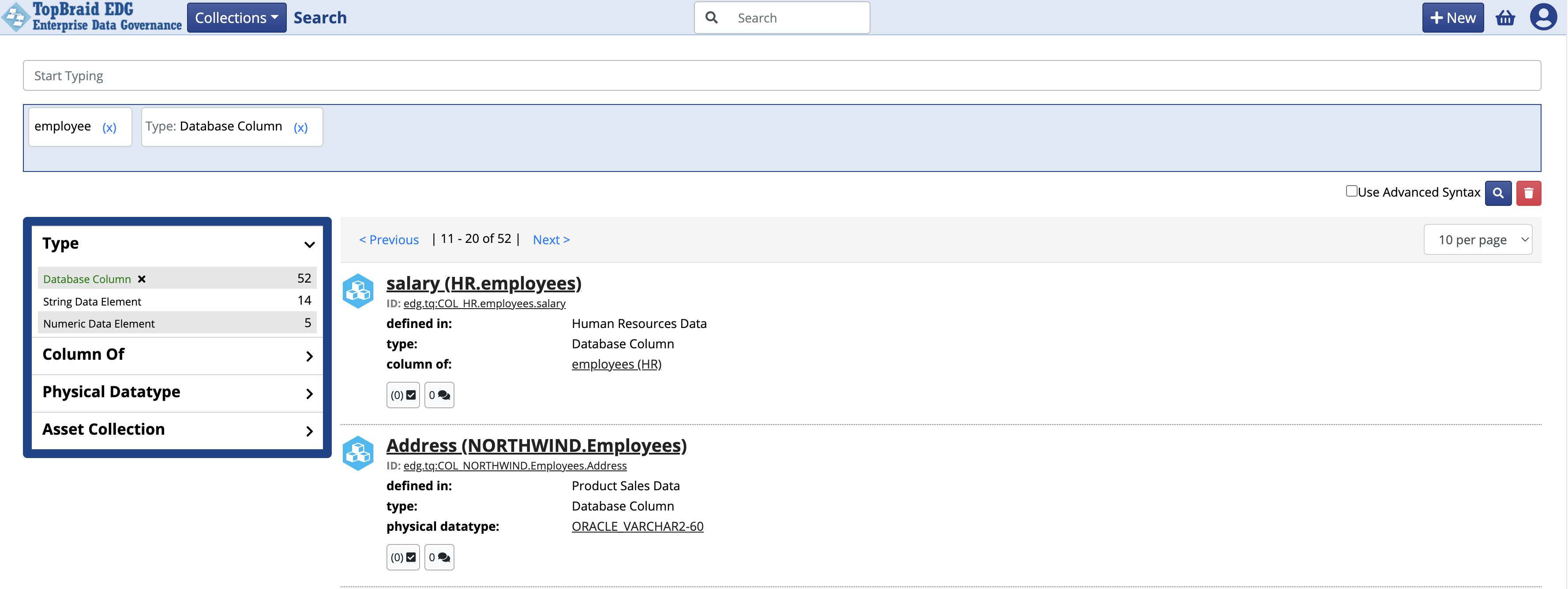
Search Results can be customized through DASH Property Roles (https://datashapes.org/propertyroles.html) which allows each datatype that is indexed to utilize different properties in the result summary.
Observe the search results below, their respective home graphs have been configured with different property roles for the same type (Database Column).
Database Columns from the Human Resources Data collection will include information from the ‘column of’ property.
Database Columns from the Product Sales Data collection will include information from the ‘physical datatype’ property.
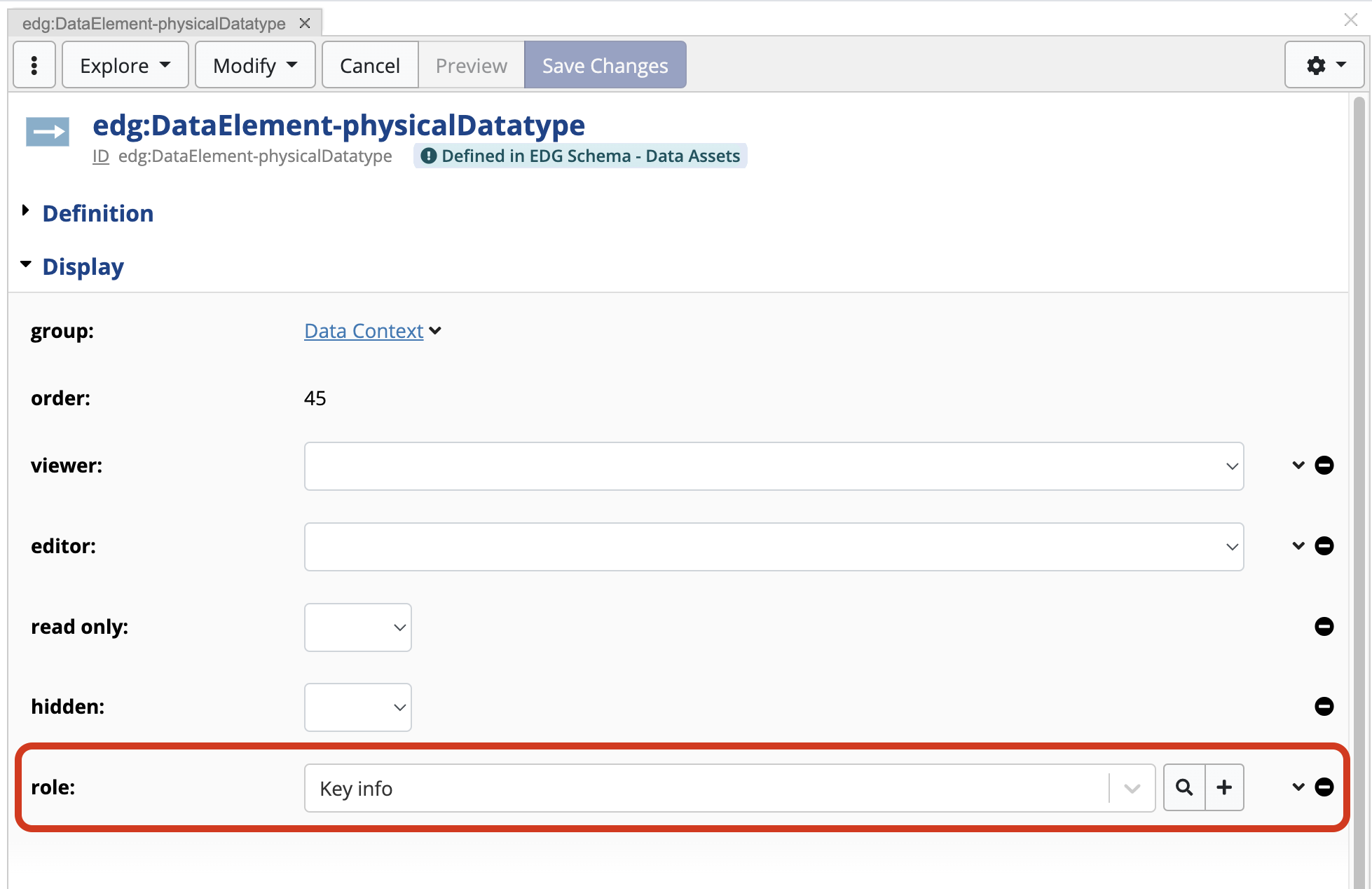
Assigning a Dash Property Role can be done through the Ontolgoy Editor. The below image of the form panel shows the Property Shape edg:DataElement-physicalDatatype being assigned a Key info Property Role.
In addition to simply using search keywords, users can combine them with Lucene operators to form richer search queries.
By default wildcard search has been implemented before and after the search term.
For example, searching for the string “customer” without quotes actually searches for *customer*.
Check the box for Use Advanced Syntax for Lucene query expressions:
Example Lucene Operators
Wildcards (* ?): “?” performs a single character wildcard search and “*” performs a multiple character wildcard search. For example, te?t matches “test”, “text”, etc and Ken* matches all values that start with “Ken”. product -will find anything with the word “product” in it. name -will find anything that ends in “name”
Fuzzy (~): Matches similar spellings of the word. For example john~, will match “john” and “jean”. The similarity threshold is set to 0.5 by default. You can adjust it using any number between 0 and 1. For example, john~0.8.
Prohibit (-term or NOT term): excludes matches that contain the term after the “-” or “NOT” symbols. For example, Ken*-Kentucky matches all values that start with “Ken” but excludes anything that matches “Kentucky”.
Modifiers (AND OR): using the AND operator will match items that contain both terms while the OR operator matches an item that contains either of the terms.
Range queries: using TO operator will match items with the range of values. For example, “Finland TO Germany” in curly brackets. If you want to limit this to a particular field (for example) only a label, use <property name>:{<search query>}. For example, skos_prefLabel:{Finland TO Germany}.
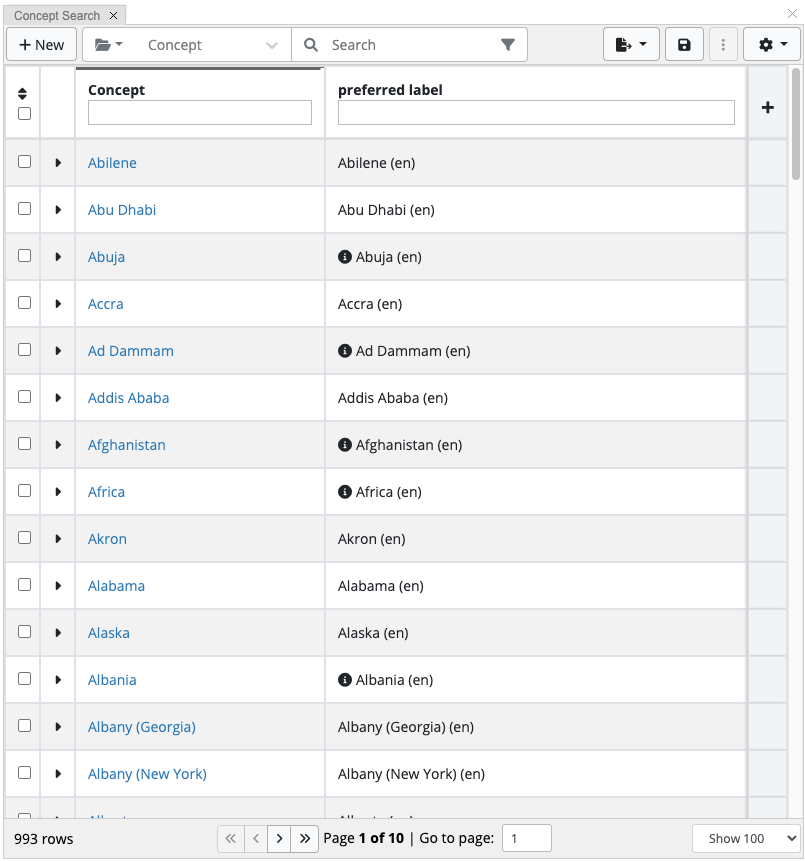
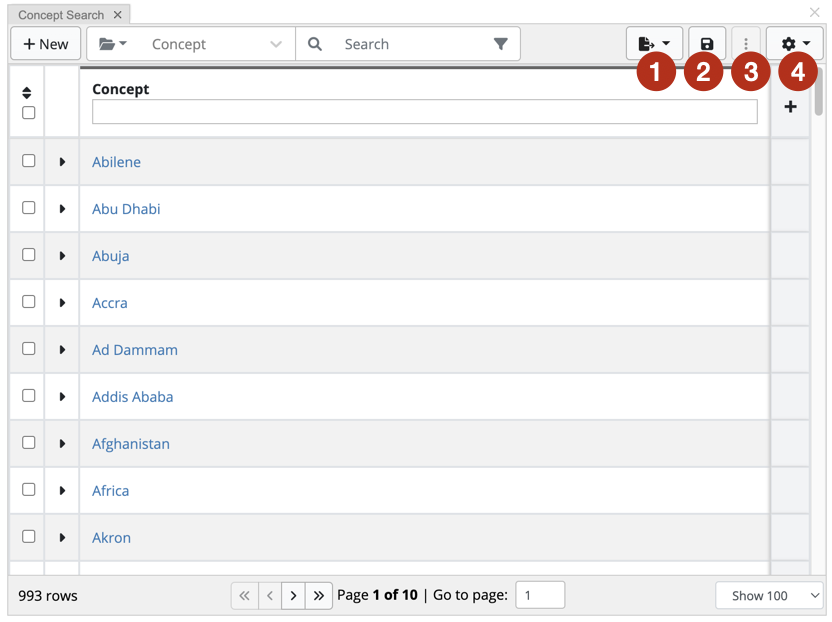
The Search panel lists assets of the selected type in a sortable table.
From here, users can further filter displayed assets, export information, save searches and perform other operations.
Note
This panel is not available for ontologies, please see ontology specific documentation in Working with Ontologies.
By default, this panel will display up to 1,000 result rows, unless changed by your Administrator.
The Type Selector shown at the top of the Search panel lets you to select the type of assets to show in the table.
You can select an asset type either from the Type drop-down list (it supports autocomplete so to select you can start typing the name of an asset type you are interested in) or you could click on the button next to the drop-down list to open a browsable hierarchical navigator listing available asset types.
The table in the Search panel shows only assets of the selected type including any of its sub types.
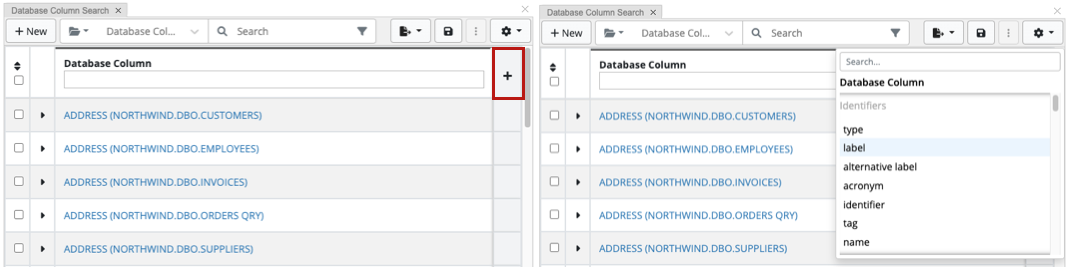
The ability to add/remove Columns is managed by clicking the + button, which is always visible on the right hand side of the table header.
Properties available for selection depend on the type of the asset.
For example, Database Column is selected as the asset type in the image below.
You will be able to select any properties defined for the Database Column asset type.
You can scroll through the list of properties available for selection or quickly find a property by typing in the Search field at the top of the dropdown.
Clicking on a property will select it as column.
Currently selected columns will be shown at the top of the drop down list.
To remove a selected column, click on the “x” icon next to it.
For properties that are relationships, you will see “>” to the right of the property name – as shown in the screenshot above.
If you click on it, TQ Data Foundation will present a list of properties for the related asset.
This way, you can add as columns not only properties of assets you are looking at, but also properties of related resources – these are called nested columns.
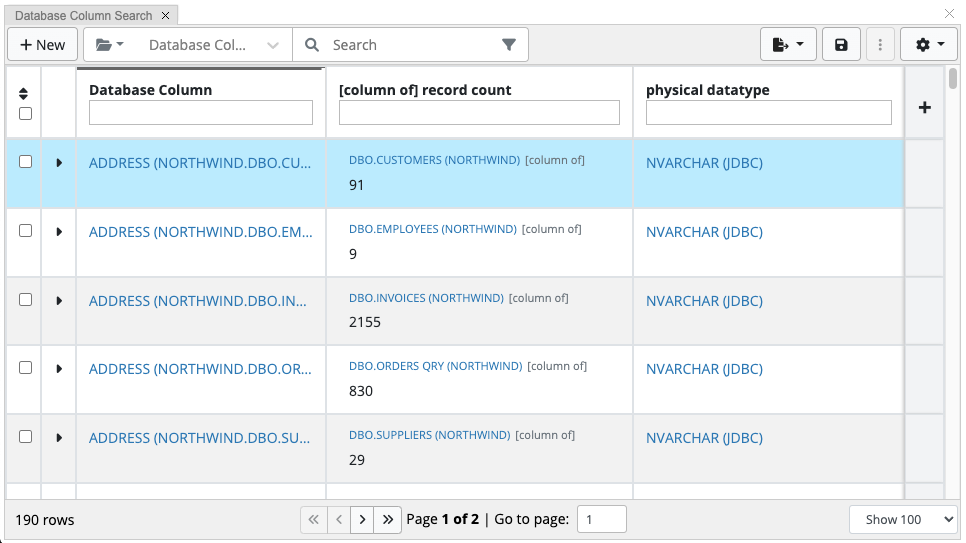
The screenshot below shows a results table that we will get after selecting as columns 1) “record count” property that belongs to related assets – namely, Database Tables that assets of the selected type, Database Columns, are associated with via “column of” property – this is an example of a nested column and 2) “physical datatype” property that belongs directly to the Database Columns.
If a column is a nested column, the header row will display the connecting relationship name in the square brackets.
Cell values for such columns will display the related assets before displaying the value of the selected property.
You can select more than one level of nesting.
The Search panel has New button.
Clicking on it, will let you create a new asset of the currently selected type.
The Search panel also offers several other actions that can be performed on the search query or on the search results.
These actions and the corresponding menus and buttons are shown in the next screenshot and explained in the text below it.
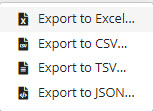
Export. Provides access to the various export options for search results.
The entire search results are exported unless you check certain results rows, then export will be limited to those rows.
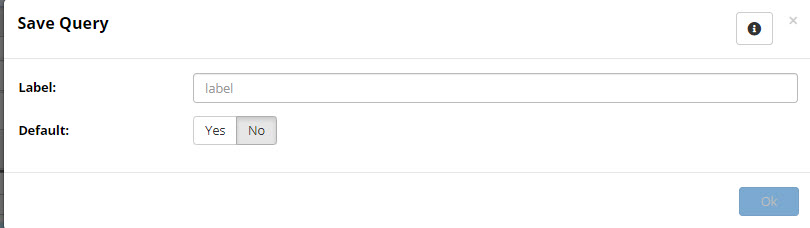
Save Search button.
Will bring up the dialog to save searches.
Saved searches are public and can be seen and used by any other users of this collection.
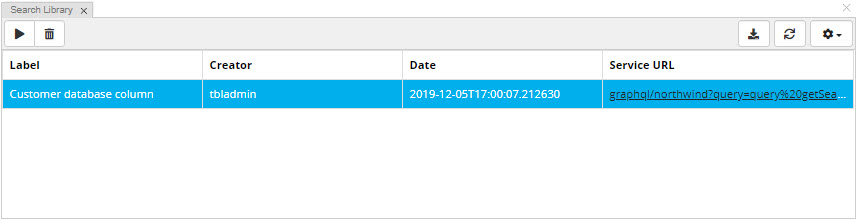
To run or delete previously saved searches use the Search Library panel.
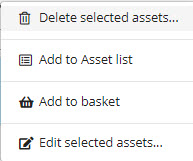
More. Provides access to several actions that can be performed on selected results.
Check the row boxes for the items you want to perform these actions on.
Delete
Add to Asset List – which is another panel in the editor used for bulk functions or bookmarks
Add to Basket – which is the basket for all of TQ Data Foundation located in the main header bar
Edit assets – will launch a Batch Edit wizard tool
Show on Map Results Panel – this option will be available only if Map Explorer Panel is enabled.
Clicking on it will display selected items on the map – provided that they have geo coordinates.
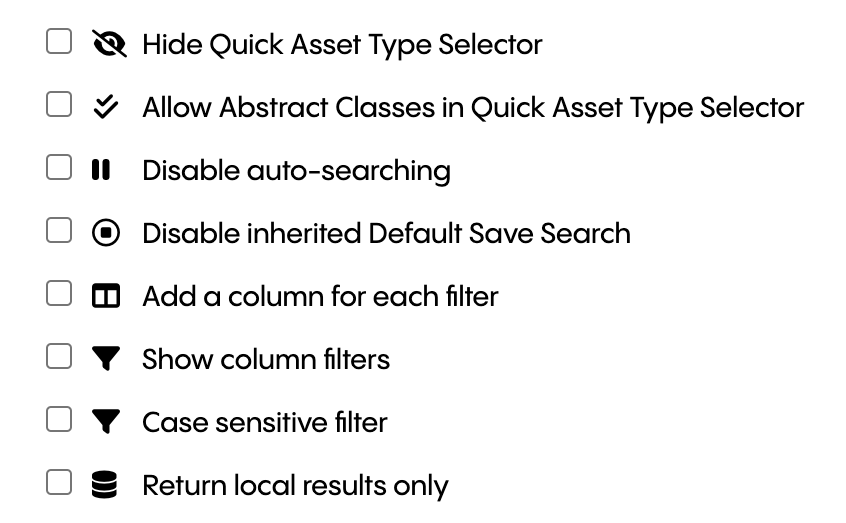
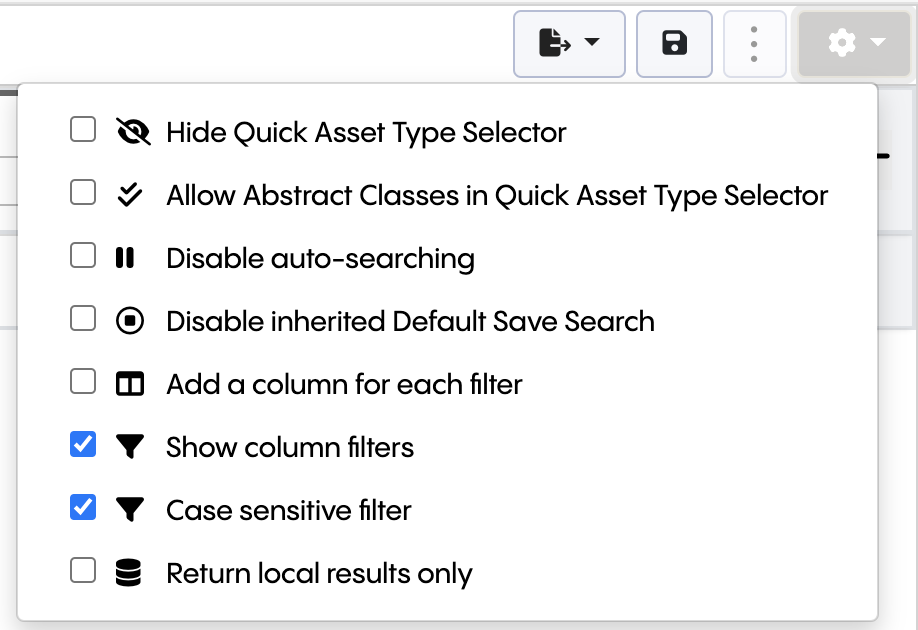
Settings menu for Search Panel.
Lets you personalize the behavior of this panel.
Hide Quick Asset Type Selector – will hide the type selector drop-down list but leave the type selector button in place.
Allow Abstract Classes in Quick Asset Type Selector - when enabled abstract classes will be visible within the asset type selector.
Disable auto-searching – this will change the behavior of the free text search box.
You will need to hit enter when ready to submit instead of the results auto populating as you type.
Disable inherited Default Saved Search - checking this box will prevent the search panel from applying a saved search that was created for the parent type(s) of the selected asset type.
Add a column for each filter – checking this box will add a column to the results table each time you add a property as a filter for the search.
Show column filters - checking this box will render the column filters.
Case sensitive filter - checking this box will ensure column filters respect the case of the entered filter.
Return local results only – this will filter out included collections.
You can search among the assets of selected type by using:
Free text search of all textual propertye values -
The entered text is matched against any property with a textual value;
e.g., label, description, note. The text string can be a partial match.
For example, searching for “rock” will be interpreted as rock and return results for
“rocket”. Multiple word free text searches will be joined with a logical AND:
AB implies A AND B
“AB” matches the full term (in exactly that order)
AORB is an explicit logical OR; any number of OR terms is supported,
such as AORBORCORD
Filter specific property values -
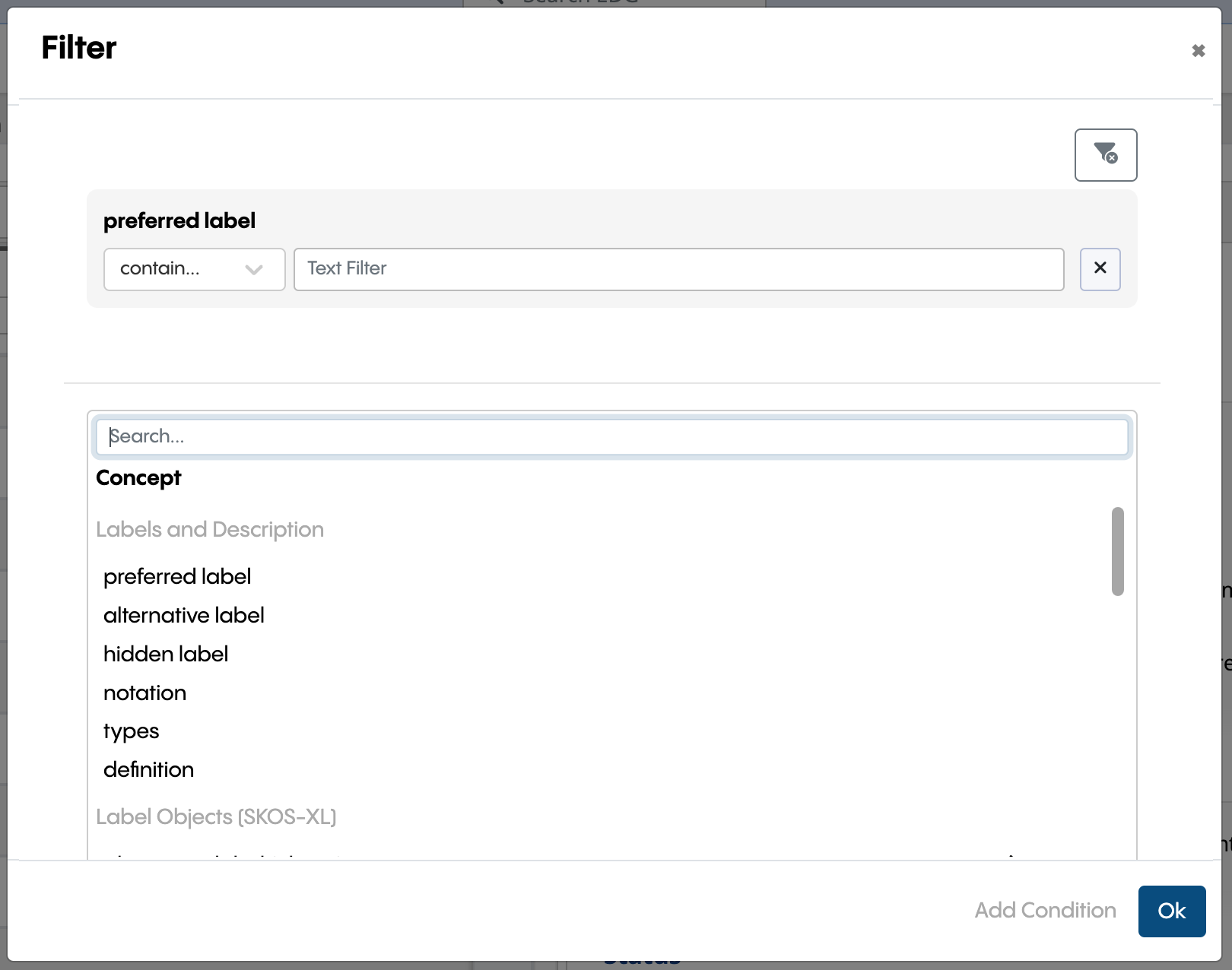
The filter icon will open a dialog containing the current active filters or
a listing of available properties from which one or more can be selected
for filtering. This dialog works like the Columns drop down,
including the ability to select properties of related assets.
For each property selected in the Filter dialog, select the match type
and enter or select its search criteria. The match type determines
how TQ Data Foundation will use the search criteria. Different properties can
use different match types. The search criteria specified for the selected
properties are combined together to produce an overall search result.
The search criteria will not be applied until clicking ‘Ok’;
while clicking off the dialog will cancel the changes.
How a search value matches instance property-values
contains all
This is the default match type for text properties. The entered text matches any resource where the specified property’s value contains the search string (case-insensitive). In case of multi-word searches, the resource must match all of the individual words. Example: For a city-name property, the search string “lis” would match instances having city-name values such as “Lisbon”, “Lisboa”, and “Minneapolis”.
contains any
The entered text matches any resource where the specified property’s value contains the search string (case-insensitive). In case of multi-word searches, the resource can match any of the individual words. Example: For a city-name property, the search string “new york” would match instances having city-name values such as “New York”, “Newark”, and “New Orleans”.
not contains
The entered text matches any resource where the specified property’s value does not contain the search string (case-insensitive). Example: For a city-name property, the search string “lis” would not match instances having city-name values such as “Lisbon”, “Lisboa”, and “Minneapolis”. Special characters, including but not limited to: ; “ ‘ [ ] < > `, will be ignored if present in the search string.
equals
This is the default match type for relationship properties. For attributes, the entered text matches any resource where the specified property’s value exactly matches the search string (case-sensitive). For relationships, the entry field becomes an auto-complete field for selecting a related asset and will present a list of auto-complete options that match the entered text, a list of the names (labels) of any resources that begin with the entered text.
not equals
For attributes, the entered text matches any resource where the specified property’s value exactly does not matches the search string (case-sensitive). For relationships, the entry field becomes an auto-complete field for selecting a related asset and will present a list of auto-complete options that does not match the entered text, a list of the names (labels) of any resources that begin with the entered text.
starts with
The entered text matches any resource where the specified property’s value starts with the search string (case-insensitive).
regex (regular expression)
For text properties, the entered text is used as a regular expression to match property values (case-insensitive). Example: For a city-name property, the search string “^lis” matches city-name values that begin with “lis”, e.g., “Lisbon” and “Lisboa” but not “Minneapolis”. Conversely, “lis$” matches only at the name’s end. For relationships, the regular expression is matched with the labels of the related resources.
any value
This match type has no corresponding search criteria. It simply searches for any occurrence of the selected property. Example: This match type can be used to determine how extensively a property is used.
min/max number of values
This match type finds resources that have a number of values for the selected property between the specified minimum and maximum values (inclusive). Example: If most resources in a Data Assets collection have labels in three languages, entering a label search with a min/max values range of 0 to 2 would return those instances with fewer than three labels.
no value
Like any value, above, this match type has no corresponding search criteria. It searches for items with no occurrence of the selected property. Example: This match type can be used to clean up a Data Assets Collection and check for any remaining values.
boolean
This is the default match type for Boolean properties. The selected value (true or false) matches any resource with a matching property value.
nested form
This is available only for relationship properties. Adds an embedded search form for properties whose type is another class
min/max (inclusive)
This is the default match type for numeric properties. This matches resources where the specified property’s value is within the specified range, inclusive.
min/max (exclusive)
This matches resources where the specified property’s value is within the specified range, exclusive.
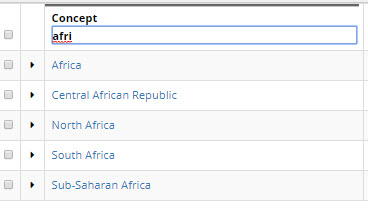
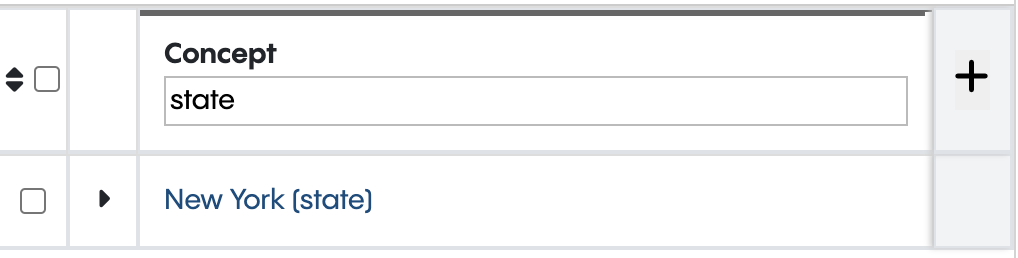
Refine field is displayed at the top of each column under the column name.
Entering a value in this field refines the results displayed in the table.
The Refine is similar to Filter except that it affects only the
visibility of assets that are already in the results table, without
affecting which assets are loaded into results table, i.e., the underlying
search scope is unchanged and refine only narrows data already in the table.
Note
Refine is not visible by default, users must toggle Show column filter under the panel settings menu.
Enable case sensitive filters via Search Panel Settings.
Searching for Assets using Refine Enable Case Sensitive Filter
Note
Show column filters must also be enabled to take advantage case sensitive filtering.
Searching for Assets using Refine (case sensitive)
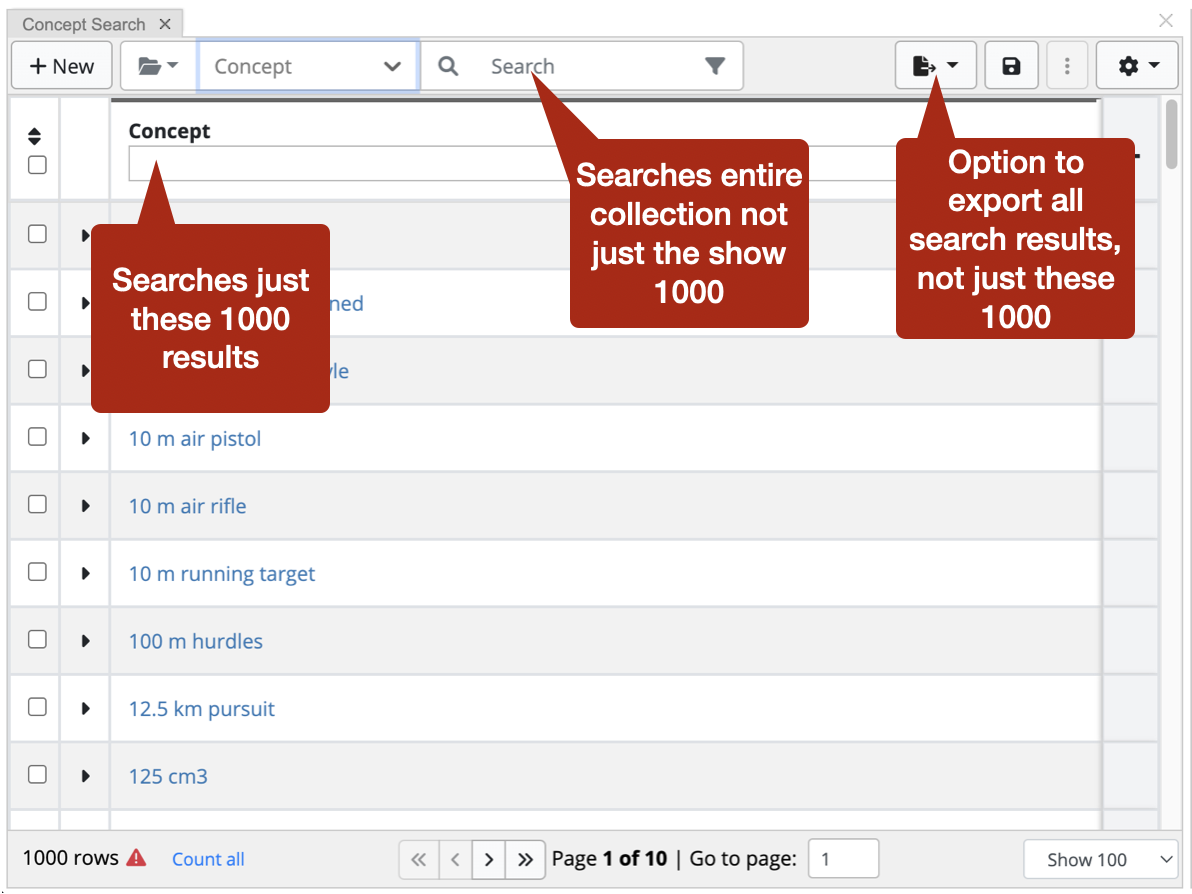
If you have incomplete search results, over 1000 if you have the default settings, you can still search the entire collection as well as export all the search results:
The Search Panel allows you to edit assets in a table, making it easy to quickly edit selected assets.
This table editing method covers all basic data types, including datetime, HTML, and resource types.
The editor a field may utilize is determined by the known data type provided by the public GraphQL schema.
Unlike the form panel, the tabular editor will not consider alternative View/Property Shapes.
To utilize this editing feature, ensure that the correct permissions are assigned, and the graph is not set to read-only.
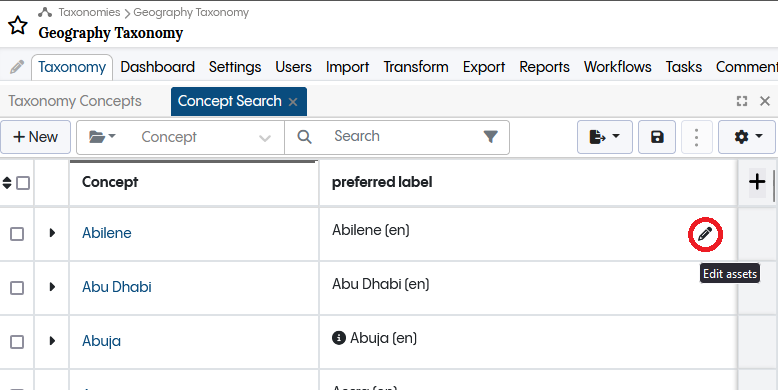
Once these conditions are met, hovering over the column in Asset Search will make the edit icon visible and accessible.
Upon clicking the edit icon, the Search Panel will automatically identify the type of editor required.
This determination is possible due to the prior knowledge of the schema, ensuring that the appropriate editor is promptly displayed.
Clicking the edit icon triggers a switch to edit mode, resulting in the temporary blocking of all navigation within the Search Panel. Any attempt to navigate away from the panel prompts an alert seeking confirmation before proceeding, with a risk of potential loss of any ongoing changes.
Editing across relationships is not supported.
Only local data is editable, any imports or inferred values are not editable.
Multiple cell edits are not supported.
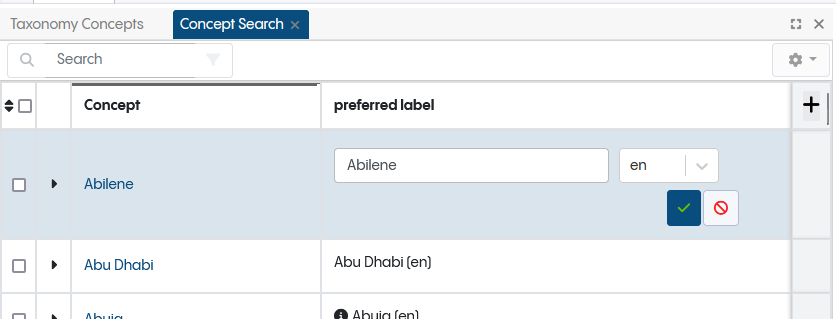
When an edit of the value is initiated, the UI would alter the color of the input field, serving as a visual indicator.
Upon completing the changes, the user has the option to either confirm or cancel their actions by clicking the respective buttons.
Customizing what is Available in the Search Panel
Depending on the asset collection type, different types of assets are available for search.
For example, for Taxonomies, you can by default only search for instances of Concept and its subclasses,
and a couple of similar taxonomy-specific classes.
If you want to search for assets that are not instances of Concept, or if you want to perform nested searches
that walk into linked assets that are not instances of Concept, you first need to tell the GraphQL engine about
those classes.
See SHACL and the GraphQL Schema on how to customize which classes will be available.
Lucene integration and special character handling in Search
TQ Data Foundation uses the Apache Lucene library for indexing text.
A text index is built on system startup, if it does not already exist.
The indexer is using Graph Listeners and is updated in near real time as data changes.
Users with administrator privileges can rebuild the cache on demand using the Text Indices Admin Page.
By default, both Global Search and the editor search panel use the Lucene index StandardAnalyzer.
The default StandardAnalyzerdrops characters such as / and – while the WhitespaceAnalyzer preserves them.
To search over special characters (such as / ? and -), an administrator must enable the WhitespaceAnalyzer option in Product Configuration Parameters Admin Page.
After making a change in analyzer, the administrator needs to rebuild the indices using Text Indices and Global Search Index.